Tutorial
This tutorial walks you through a complete example of using the nomad-catalysis plugin — from uploading catalyst and reaction data to exploring results in the Catalysis App. We use real data from a CuZnAl methanol synthesis catalyst published in Schumann et al., ChemCatChem 6, 2832–2839 (2014).
Prerequisites
- A NOMAD account (create one at nomad-lab.eu)
- The nomad-catalysis plugin must be available on your NOMAD instance (it is pre-installed on the central NOMAD and the Example Oasis)
Step 1: Access the Example Upload
The plugin ships with a built-in example upload containing real catalysis data. To use it:
- Log in to your NOMAD instance
- Navigate to PUBLISH → Uploads
- Click CREATE A NEW UPLOAD
- In the upload page, look for the blue Drop Files Here bar and upload this zip folder.
The example upload contains three files:
| File | Description |
|---|---|
catalysis_sample.archive.json |
A CuZnAl catalyst sample entry |
methanol_synthesis.archive.json |
A catalytic reaction entry for methanol synthesis |
methanol_synthesis_CuZnAl.xlsx |
Excel data file with reaction conditions and results |
Step 2: Review the Catalyst Sample Entry
After the upload is processed, open the CuZnAl methanol synthesis catalyst entry. This is a CatalystSample instance containing:
- Name: CuZnAl methanol synthesis catalyst
- Lab ID: FHI-S15018
- Institution: Fritz-Haber-Institut Berlin / Abteilung AC
- Catalyst type: bulk catalyst, oxide
- Elemental composition: Cu (55%), Zn (22.5%), Al (1.8%), O (20.9%)
- Preparation: precipitation method
- Surface area: 117.8 m²/g (BET method)
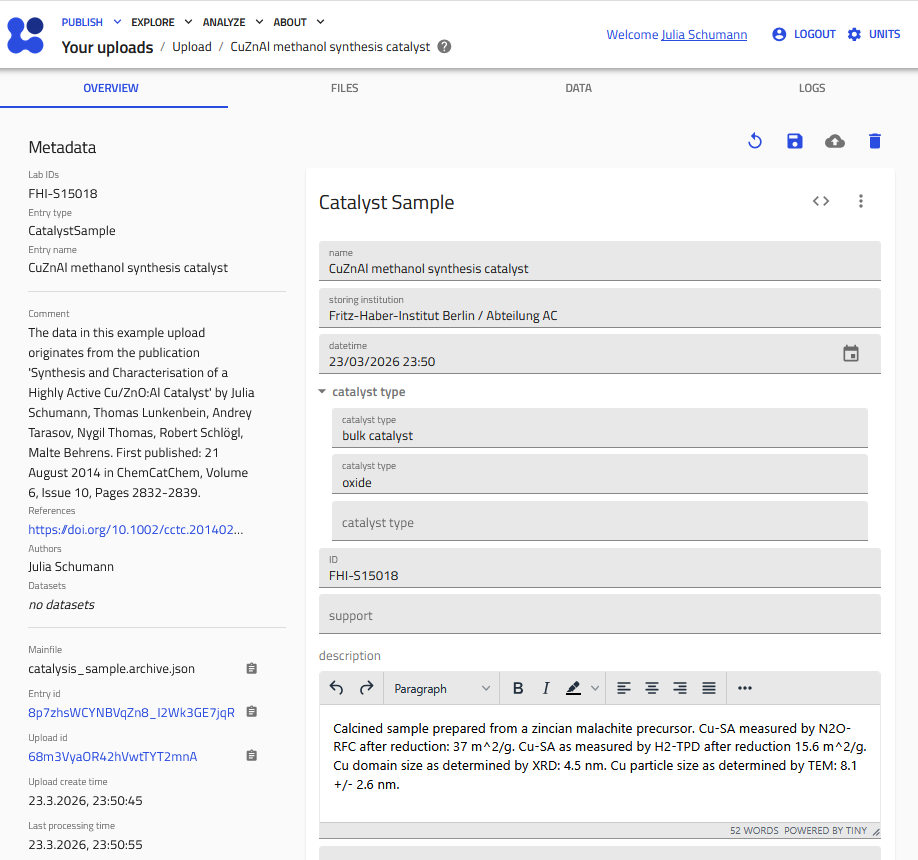
This demonstrates how the CatalystSample schema captures the key properties of a catalyst material in a structured, machine-readable format.
Step 3: Review the Catalytic Reaction Entry
Open the CuZnAl methanol synthesis entry. This CatalyticReaction instance was automatically populated from the uploaded Excel file and the JSON archive. It includes:
- Reaction type: hydrogenation
- Reaction name: methanol synthesis
- Reactor setup: Chinchen High Pressure Methanol Synthesis Reactor (plug flow)
- Reactor filling: 50 mg catalyst, 700 mg SiO₂ diluent, sieve fraction 100–200 µm
- Pretreatment: H₂/Ar reduction ramp to 523 K
- Reaction conditions and results: extracted from
methanol_synthesis_CuZnAl.xlsx
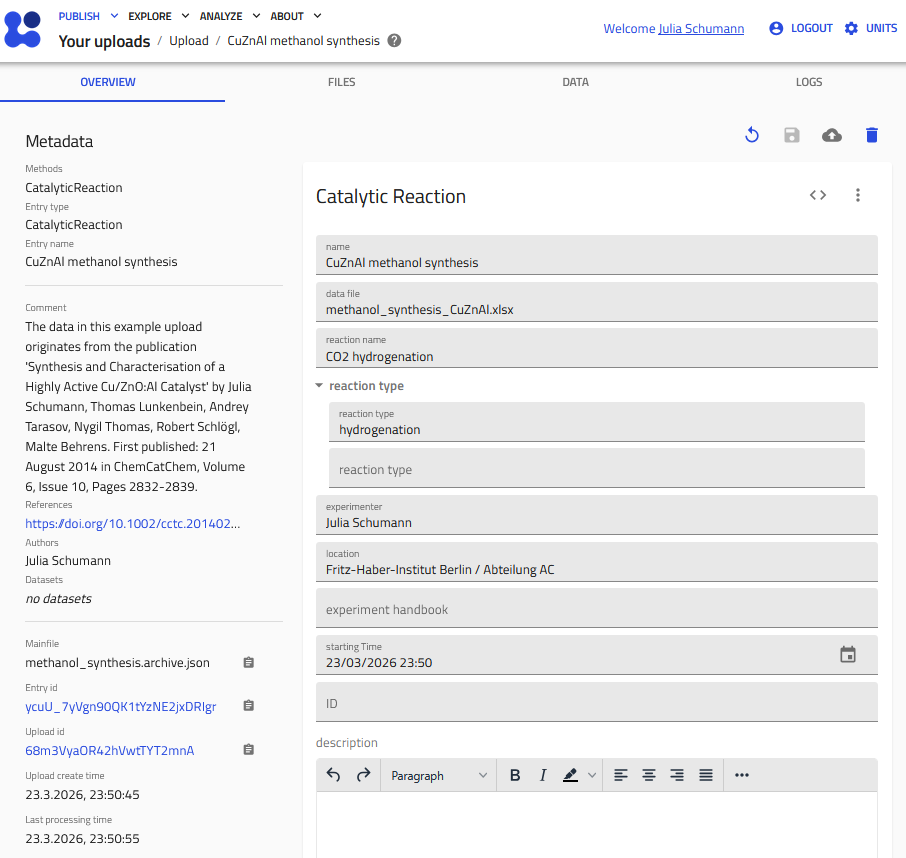
The Excel file follows the template format described in the How-to guide. Column headers like set_temperature, x CO2 (%), S_p methanol (%) are automatically mapped to the schema quantities.
Step 4: Explore Data in the Catalysis App
The plugin provides a dedicated Heterogeneous Catalysis App for searching and visualizing catalysis data:
- Navigate to the Catalysis App in the NOMAD menu
- The Dashboard shows an overview with:
- Periodic table of elements in catalyst compositions
- Widgets for catalytic reactions, reactants, and products
- Scatterplots of temperature ranges and conversions
- Use the Filter Menu on the left to narrow results by catalyst materials or reaction properties
- Browse the Result Entry List below the dashboard for individual entries
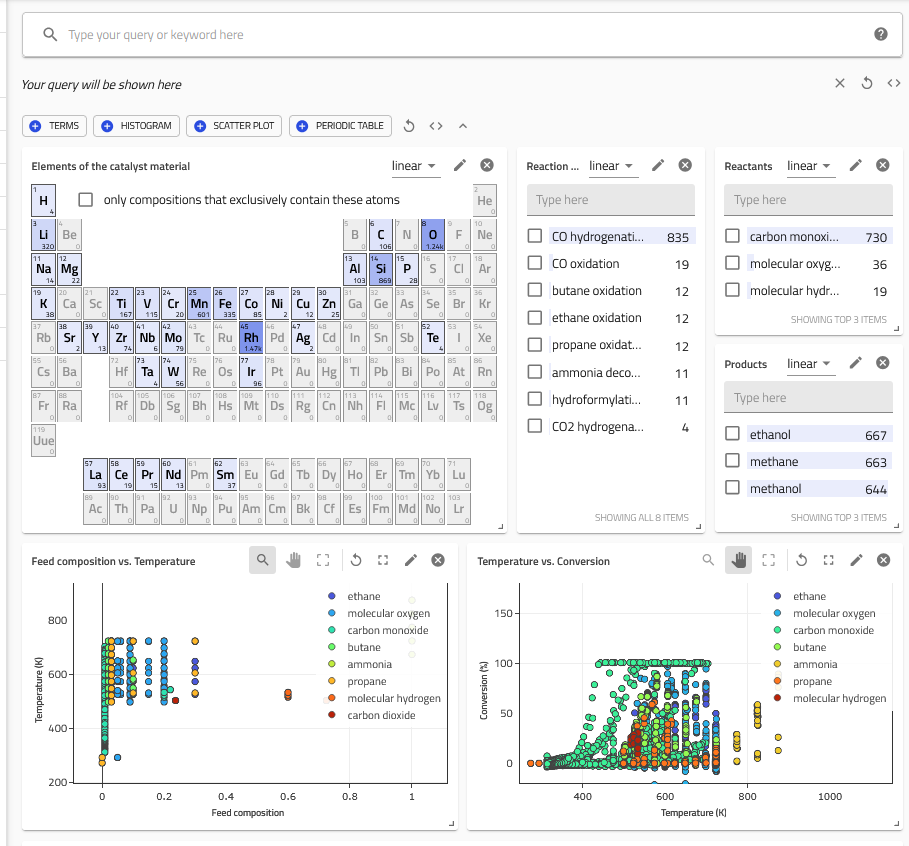
For more details on searching and filtering, see the Search Catalysis Data guide.
Step 5: Try It Yourself
Now that you've seen the example, try creating your own entries:
- From a template: Download one of the provided Excel templates and fill it with your data. You can also check out the Example upload in the NOMAD instance first: instead of Create a New Upload you can click on Example Uploads and search for "Heterogeneous Catalysis Example" under the FAIRmat examples category in the pull down menu.
- From the GUI: Create entries manually using the built-in schemas (select Catalysis category in Create from Schema)
- From JSON: Write
*.archive.jsonfiles following the example format
Next Steps
- How to create catalysis entries — detailed guide on all creation methods
- Search catalysis data — using the Catalysis App
- Reference — full schema documentation