Upload and publish data using the NOMAD API
In this tutorial, we interact with the NOMAD API using Python and the nomad-utility-workflows package, to programmatically perform the full data upload and publishing workflow. We work with example data files to inspect generated entries, modify metadata, organize entries into datasets, and publish the results on the NOMAD test deployment. By the end of the tutorial, we will have reproduced the core upload and publishing workflows available in the NOMAD GUI.
What you will learn
In this tutorial, you will learn how to:
- Authenticate with the NOMAD API using Python
- Upload raw research data to NOMAD and create uploads programmatically
- Retrieve uploads and entries and inspect or edit their metadata
- Group entries into datasets for curation and organization
- Share uploads with collaborators and manage access permissions
- Publish uploads on the NOMAD test deployment
Before you begin
This tutorial assumes basic familiarity with Python and programmatic workflows.
Before starting, make sure you have the following:
-
NOMAD user account
In order to interact with the NOMAD API, a user account is required. You can create an account by following the steps described in the overview page. -
Python environment
A Python 3.11 or newer environment with permission to install external packages.
The examples in this tutorial are designed to be run in a Jupyter notebook. -
Basic Python knowledge
You should be comfortable running Python code, installing packages, and working with notebooks. -
Example files available on your local machine
This tutorial uses provided example data files for:
Warning
The code snippets in this tutorial are designed to be run sequentially in a Jupyter notebook. Running code snippets out of order may lead to errors, e.g., due to missing imports, variables, or setup steps that were introduced earlier. For a smooth experience, it's suggested to follow the steps in order.
Environment setup
In this tutorial, we will use the NOMAD test deployment. Therefore, in all code examples, we will set url="test" when calling the helper functions. Later, you can switch to url="prod" or a custom NOMAD API URL if needed.
We assume you are working in a Python 3.11+ environment, preferably in a dedicated virtual environment for this tutorial.
Need help creating a project folder, Python environment, and Jupyter kernel?
This optional section shows how to create a project folder, set up a clean Python environment, and ensure that Jupyter uses the correct kernel for this tutorial.
1. Create a project folder
Open a terminal (or PowerShell on Windows) and run:
All files used in this tutorial (notebooks, ZIP files, and env.txt) should be placed in this folder.
2. Create a virtual Python environment
-
Linux / macOS:
-
Windows (PowerShell):
3. Activate the environment
-
Linux / macOS:
-
Windows (PowerShell):
Once activated, your terminal prompt should show (nomad-env).
4. Install Jupyter and required tools
5. Register the environment as a Jupyter kernel
This step ensures that Jupyter can use the Python environment created for this tutorial.
6. Start Jupyter
Open or create a notebook (.ipynb), then select the kernel:
Kernel → Change Kernel… → Python (nomad-env).
7. Verify the selected kernel
Run the following cell in your notebook:
The printed path should point to nomad-env. If not, re-select the kernel.
Install the plugin and helper packages:
!pip install --upgrade pip
!pip install "nomad-utility-workflows[vis]>=0.2.0"
!pip install python-dotenv
The nomad-utility-workflows provides high-level helpers for interacting with the NOMAD API and python-dotenv is used to load credentials from a local file, e.g., env.txt.
Create a file named env.txt in your project folder with the following content and save this file next to your notebook or script and keep it private (do not commit it to version control):
Before calling any helper functions, load env.txt so that the environment variables are visible to nomad-utility-workflows:
This makes NOMAD_USERNAME and NOMAD_PASSWORD available to the package via environment variables.
Now you can check which user you are authenticated as, and confirm that the credentials were loaded correctly using:
from nomad_utility_workflows.utils.users import who_am_i

me = who_am_i(url="test")
print("Authenticated as:", me.name)
print("Username:", me.username)
print("Email:", me.email)
Example notebook output
This call confirms which NOMAD account is being used.
Create uploads
Next, you create uploads in NOMAD from the three example ZIP files.
The helper upload_files_to_nomad both creates a new upload and attaches the given ZIP file in a single step (in the GUI these are two actions; here they are combined into one API call).
Warning
All uploads in this tutorial must be sent to the Test Deployment of NOMAD The data there is not persistent and will be deleted occasionally, which ensures that you can safely test uploading and publishing without affecting public data.
When running code snippets, always make sure that the url parameter is set to test, i.e.,
url="test".
Upload miscellaneous files
As a first example, upload the miscellaneous files to the 'test' NOMAD instance:
import os
from nomad_utility_workflows.utils.uploads import upload_files_to_nomad, get_upload_by_id

misc_zip_path = os.path.abspath("miscellaneous_data.zip")
misc_upload_id = upload_files_to_nomad(filename=misc_zip_path, url="test")
In this code:
os.path.abspath("miscellaneous_data.zip")resolves the ZIP file to an absolute path.upload_files_to_nomad(...)uploads the file to the NOMAD test deployment and returns a newupload_id.
Let's now inspect the Upload and compare it with what we see in the GUI:
misc_upload = get_upload_by_id(upload_id = misc_upload_id, url="test")

print("Upload summary:")
print("----------------")
print("Upload ID:      ", misc_upload.upload_id)
print("Entries:        ", misc_upload.entries)
print("Published:      ", misc_upload.published)
print("Embargo:        ", misc_upload.with_embargo)
print("GUI URL:        ", misc_upload.nomad_gui_url)
Example notebook output
This code does the following:
get_upload_by_id(...)retrieves the upload metadata as aNomadUploadobject.- The final
print(...)statements show a compact summary:upload_id,entries,published,with_embargo, and thenomad_gui_url.
In the NOMAD GUI, the upload you just created looks like this:

Upload computational data
You can repeat the same pattern for the DFT example (FHI-aims.zip) to create a separate upload for simulated data and inspect its entries:
dft_zip_path = os.path.abspath("FHI-aims.zip")
dft_upload_id = upload_files_to_nomad(filename=dft_zip_path, url="test")

dft_upload = get_upload_by_id(upload_id = dft_upload_id, url="test")
print("GUI URL:", dft_upload.nomad_gui_url)
Example notebook output
This snippet creates a new upload for the DFT ZIP file and prints a direct GUI link where you can monitor its processing status.
To check whether entries were created, retrieve them, and print their IDs and URLs, you can type the following:
from nomad_utility_workflows.utils.entries import get_entries_of_upload

dft_entries = get_entries_of_upload(upload_id= dft_upload_id, url="test", with_authentication=True)
for entry in dft_entries:
    print(entry.entry_id, entry.nomad_gui_url)
This snippet retrieves all the entries (here only one entry) created from the uploaded computations data and prints each entry’s ID together with its direct GUI URL.
Example notebook output
Warning
If NOMAD is still processing the upload, the list may be empty. Wait a few seconds and retry.
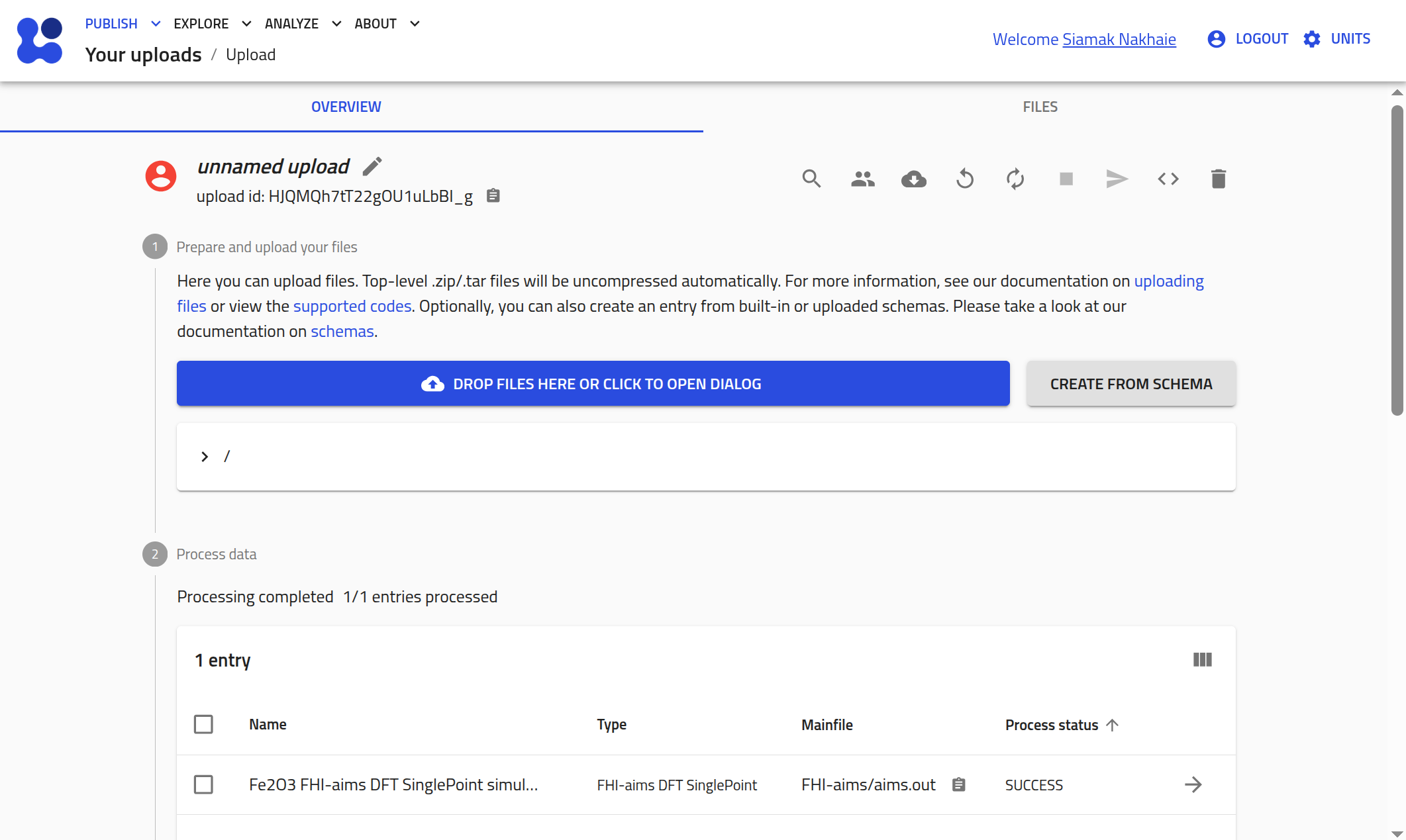
You can also inspect the same upload in the NOMAD GUI using the link printed earlier. The upload page will look similar to the example shown below:
Upload experimental data
The steps are similar to those you followed for the computations data.
Exercise: Upload XPS data and print the entry URL
Upload the file xps_nexus_data.zip to the NOMAD test deployment and print the GUI URL of the entry created from that upload.
Solution
Here is a ready-to-paste snippet for your Jupyter notebook:
import os
import time
from nomad_utility_workflows.utils.uploads import upload_files_to_nomad, get_upload_by_id
from nomad_utility_workflows.utils.entries import get_entries_of_upload

xps_zip_path = os.path.abspath("xps_nexus_data.zip")
xps_upload_id = upload_files_to_nomad(filename=xps_zip_path, url="test")

xps_upload = get_upload_by_id(xps_upload_id, url="test")
print("Upload GUI URL:", xps_upload.nomad_gui_url)

time.sleep(15)

xps_entries = get_entries_of_upload(upload_id = xps_upload_id, url="test", with_authentication=True)
for entry in xps_entries:
    print(entry.entry_id, entry.nomad_gui_url)
Inspect an upload
After creating an upload, e.g., the DFT upload, it is important to check whether NOMAD has finished processing it and whether any errors occurred.
dft_upload = get_upload_by_id(upload_id = dft_upload_id, url="test")

print("Upload status:")
print("--------------")
print("Upload ID:      ", dft_upload.upload_id)
print("Process status: ", dft_upload.process_status)
print("Errors:         ", dft_upload.errors)
print("Warnings:       ", dft_upload.warnings)
print("Entries:        ", dft_upload.entries)
print("Published:      ", dft_upload.published)
print("Open in GUI:    ", dft_upload.nomad_gui_url)
Example notebook output
This snippet:
- Retrieves the latest state of your DFT upload from the NOMAD API, using
dft_upload_id - Shows the processing status and any errors or warnings.
- Tells you how many entries were created.
- Provides a direct link to inspect the upload in the NOMAD GUI.
Once the upload has been processed successfully, you can list all entries that were created from the uploaded files.
from nomad_utility_workflows.utils.entries import get_entries_of_upload

dft_entries = get_entries_of_upload(
    upload_id=dft_upload_id,
    url="test",
    with_authentication=True,
)

print(f"Found {len(dft_entries)} entries in the DFT upload:\n")
for entry in dft_entries:
    print(
        f"- entry_id: {entry.entry_id}\n"
        f"  name: {entry.entry_name}\n"
        f"  parser: {entry.parser_name}\n"
        f"  published: {entry.published}\n"
        f"  GUI URL: {entry.nomad_gui_url}\n"
    )
Example notebook output
Found 1 entries in the DFT upload:

- entry_id: cvEq4wXAf3dN4xJv1hM7Mz040C38
  name: Fe2O3 FHI-aims DFT SinglePoint simulation
  parser: electronicparsers:fhiaims_parser_entry_point
  published: False
  GUI URL: https://nomad-lab.eu/prod/v1/test/gui/user/uploads/upload/id/HJQMQh7tT22gOU1uLbBI_g/entry/id/cvEq4wXAf3dN4xJv1hM7Mz040C38
This code:
- Retrieves all entries belonging to the DFT upload.
- Prints a compact summary for each entry, including ID, name, parser, and publication status.
- Provides a GUI link for each entry so you can open it directly in NOMAD.
Share and publish uploads
After your upload has been created and processed, you can modify its metadata to prepare it for sharing or publication.
In the examples below, we use dft_upload_id to refer to the DFT upload, but the same pattern applies to any other upload.
Edit upload's metadata
You can update the upload's name as well as the entry-level metadata (such as comment and references) for all entries contained in the upload. The function edit_upload_metadata applies metadata changes to every entry in the upload, similar to clicking the GUI button EDIT METADATA OF ALL THE ENTRIES in the upload page.
from nomad_utility_workflows.utils.uploads import edit_upload_metadata, get_upload_by_id
from nomad_utility_workflows.utils.entries import get_entries_of_upload

metadata_update = {
    "upload_name": "NOMAD Tutorial, Prepare DFT example for sharing using API",
    "comment": "DFT upload created as part of the NOMAD API tutorial using nomad-utility-workflows.",
    "references": ["https://doi.org/xx.xxxx/example-doi"],
}

# Apply the metadata update
edit_upload_metadata(
    upload_id=dft_upload_id,
    url="test",
    upload_metadata=metadata_update,
)
Example notebook output
{'upload_id': 'HJQMQh7tT22gOU1uLbBI_g',
 'data': {'process_running': False,
  'current_process': '_edit_upload_metadata',
  'process_status': 'SUCCESS',
  'last_status_message': 'Process completed successfully',
  'errors': [],
  'warnings': [],
  'upload_id': 'HJQMQh7tT22gOU1uLbBI_g',
  'upload_name': 'NOMAD Tutorial, Prepare DFT example for sharing using API',
  'upload_create_time': '2025-12-08T15:38:58.775000',
  'main_author': 'ebb26223-0cec-4d81-98f5-3b25db945b54',
  'coauthors': [],
  'coauthor_groups': [],
  'reviewers': [],
  'reviewer_groups': [],
  'writers': ['ebb26223-0cec-4d81-98f5-3b25db945b54'],
  'writer_groups': [],
  'viewers': ['ebb26223-0cec-4d81-98f5-3b25db945b54'],
  'viewer_groups': [],
  'published': False,
  'published_to': [],
  'with_embargo': False,
  'embargo_length': 0,
  'license': 'CC BY 4.0',
  'entries': 1,
  'upload_files_server_path': '/nomad/test/fs/staging/H/HJQMQh7tT22gOU1uLbBI_g'}}
This code updates the upload name and applies the comment and references to all entries in the upload.
Warning
Running the next snippet before NOMAD finishes processing the entries may make it look as if the entries metadata is not updated. Wait up to 2 minutes and retry to ensure the snippet is executed only after NOMAD processing has completed.
To inspect it programmatically try:
# Upload-level metadata (only the name appears here)
updated_upload = get_upload_by_id(dft_upload_id, url="test")
print("Upload name (upload-level):", updated_upload.upload_name)

# Entry-level metadata (comment and references live here)
entries = get_entries_of_upload(upload_id = dft_upload_id, url="test", with_authentication=True)
for entry in entries:
    print("\nEntry ID:", entry.entry_id)
    print("Entry comment:", entry.comment)
    print("Entry references:", entry.references)
Example notebook output
Retrieving the entries again confirms that the metadata was updated correctly at the entry level.
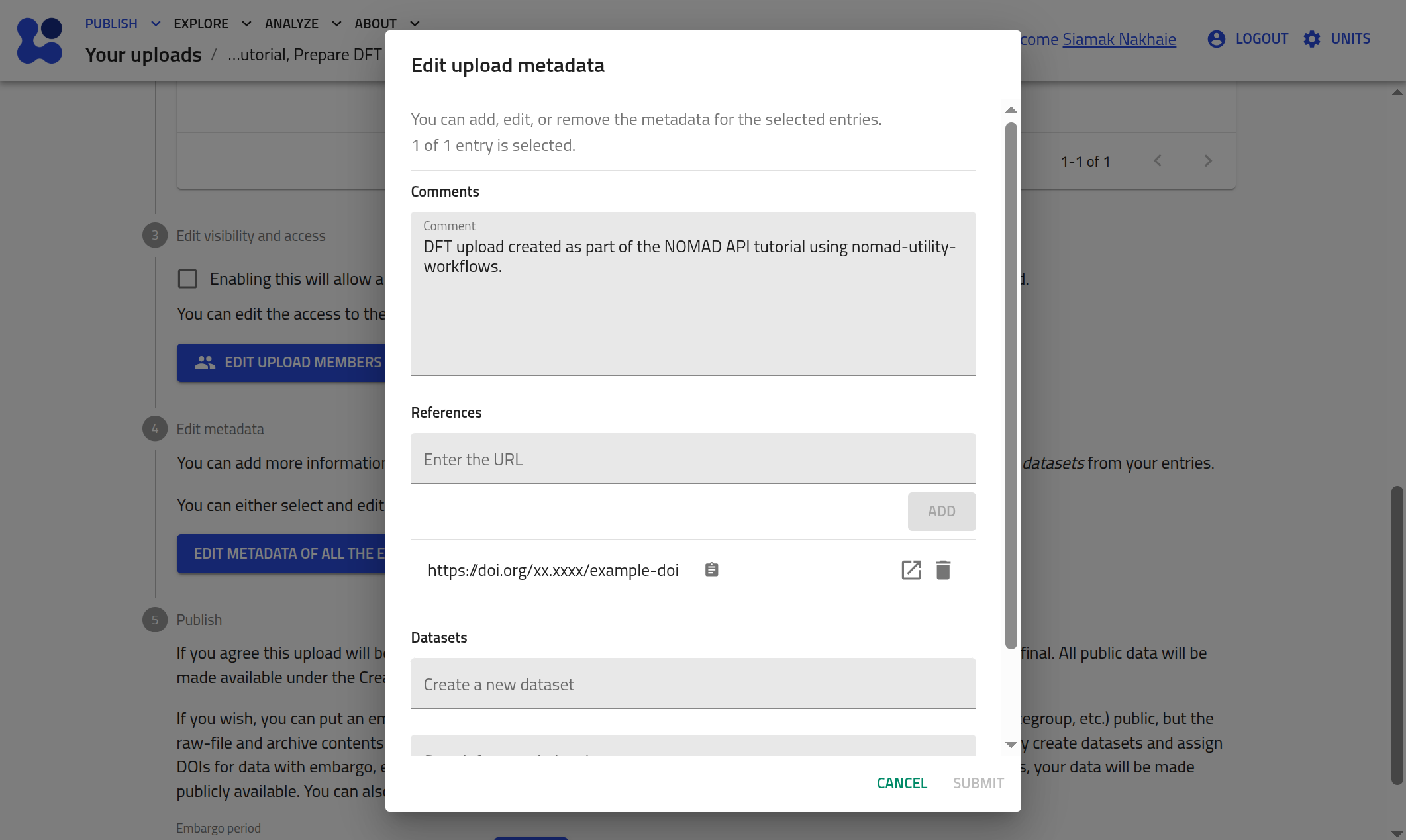
You can also confirm the changes by clicking EDIT METADATA OF ALL THE ENTRIES in the test deployment GUI for that upload. You will see that the metadata has been updated for all the entries of this upload.
Assign the upload to a dataset
You can group your upload into a dataset so that related entries can later be queried or managed together.
from nomad_utility_workflows.utils.datasets import create_dataset

dataset_name = "Example dataset to contain DFT data"
dataset_id = create_dataset(dataset_name=dataset_name, url="test")
print(f"Created dataset: dataset_id={dataset_id}, dataset_name='{dataset_name}'")
Example notebook output
To assign the upload, i.e., the entries of the upload, to the dataset you have created, it is enough that we update the upload's metadata to include the dataset_id:
edit_upload_metadata(
    upload_id=dft_upload_id,
    url="test",
    upload_metadata={"dataset_id": dataset_id},
)
Example notebook output
{'upload_id': 'HJQMQh7tT22gOU1uLbBI_g',
 'data': {'process_running': False,
  'current_process': '_edit_upload_metadata',
  'process_status': 'SUCCESS',
  'last_status_message': 'Process completed successfully',
  'errors': [],
  'warnings': [],
  'upload_id': 'HJQMQh7tT22gOU1uLbBI_g',
  'upload_name': 'NOMAD Tutorial, Prepare DFT example for sharing using API',
  'upload_create_time': '2025-12-08T15:38:58.775000',
  'main_author': 'ebb26223-0cec-4d81-98f5-3b25db945b54',
  'coauthors': [],
  'coauthor_groups': [],
  'reviewers': [],
  'reviewer_groups': [],
  'writers': ['ebb26223-0cec-4d81-98f5-3b25db945b54'],
  'writer_groups': [],
  'viewers': ['ebb26223-0cec-4d81-98f5-3b25db945b54'],
  'viewer_groups': [],
  'published': False,
  'published_to': [],
  'with_embargo': False,
  'embargo_length': 0,
  'license': 'CC BY 4.0',
  'entries': 1,
  'upload_files_server_path': '/nomad/test/fs/staging/H/HJQMQh7tT22gOU1uLbBI_g'}}
This assigns all entries contained in the upload to the newly created dataset. You can later verify this in the GUI under EDIT METADATA for any entry.
Share the upload with selected users
If you wish, you can collaborate on this upload by sharing it with selected NOMAD users of your choice. To do this, you first need to locate their NOMAD user account (their user_id). Once you have their user_id, you can assign them as a coauthor (write access) or a reviewer (read-only access).
Let’s start by searching for the user you want to share your upload with. Replace SearchSurname in the snippet below with the name of that NOMAD user.
from nomad_utility_workflows.utils.users import search_users_by_name

candidates = search_users_by_name("SearchSurname", url="test")

for user in candidates:
    print(f"Found the user '{user.name}' with user_id='{user.user_id}'")
Example notebook output
Once the user appears in the output, copy their user_id. In the next step, paste this user_id into the appropriate list and comment out all lines related to the role you do not want to assign.
from nomad_utility_workflows.utils.uploads import edit_upload_metadata

coauthor_ids = ["paste-user-id-here"]     # write access
reviewer_ids = ["paste-user-id-here"]     # read-only access

edit_upload_metadata(
    upload_id=dft_upload_id,
    url="test",
    upload_metadata={
        "coauthors": coauthor_ids, # comment out if not needed
        "reviewers": reviewer_ids, # comment out if not needed
    },
)

print("Access updated.")
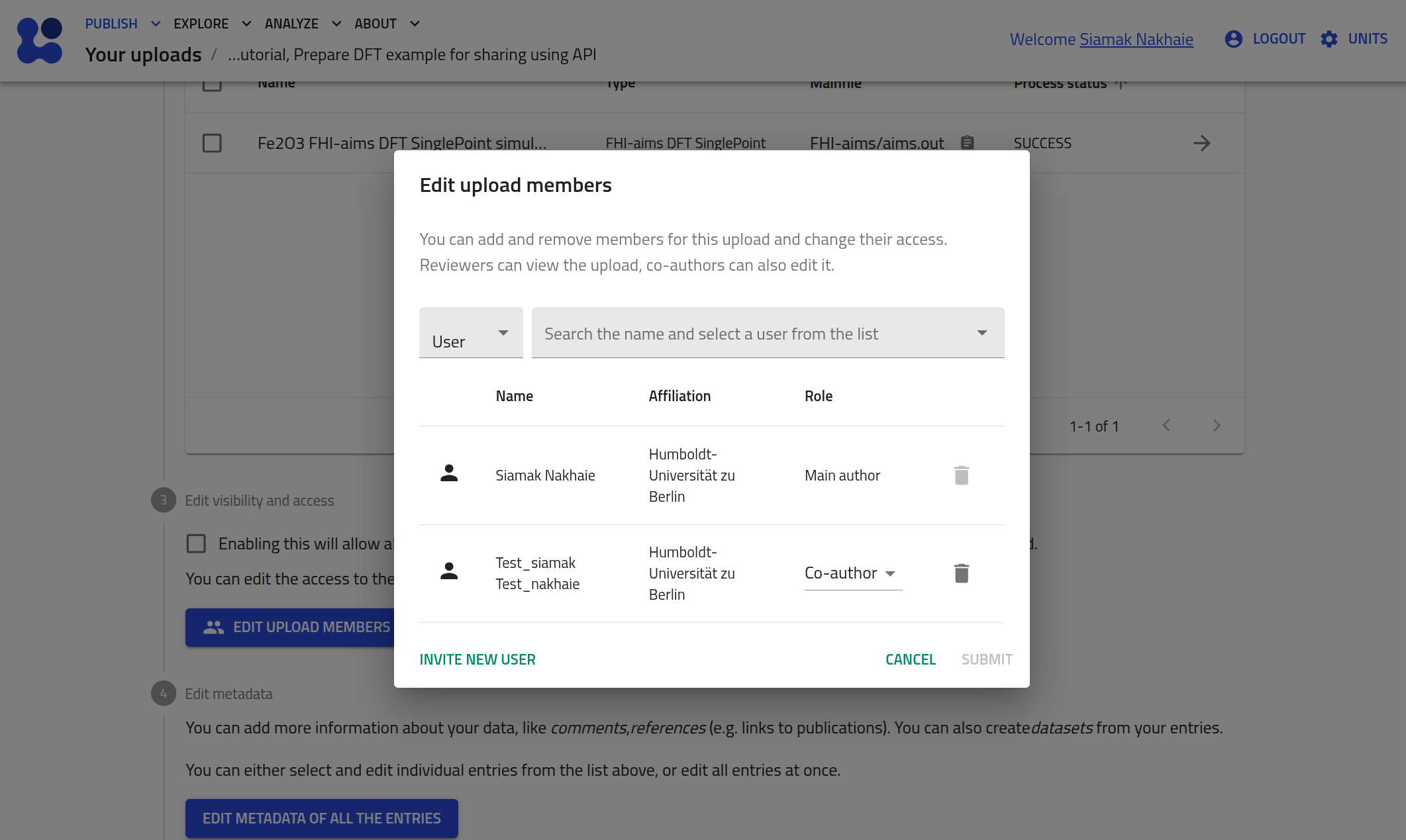
If you wish, you can verify this in the upload page by clicking EDIT UPLOAD MEMBERS, which will look similar to:
Set an embargo period
If you plan to publish your upload to NOMAD but want to delay when it becomes visible to everyone, you can set an embargo period. The example below applies an embargo of one month.
edit_upload_metadata(
    upload_id=dft_upload_id,
    url="test",
    upload_metadata= {"embargo_length" : 1},
)

upload_with_embargo = get_upload_by_id(dft_upload_id, url="test")
print("With embargo:", upload_with_embargo.with_embargo)
print("Embargo length:", upload_with_embargo.embargo_length)
Publish the upload
You can now publish your upload on the NOMAD test deployment:
Warning
Publishing data on the production server requires that you have the rights to the data and are eligible to release them under the CC BY 4.0 license, and this action is irreversible.
For this tutorial, we use the test deployment. Please make sure that url="test" is set before triggering any publication action.
from nomad_utility_workflows.utils.uploads import publish_upload
from pprint import pprint

response = publish_upload(upload_id=dft_upload_id, url="test")
pprint(response)
Example notebook output
{'data': {'coauthor_groups': [],
            'coauthors': ['f250f5ab-b05c-4bad-9939-5f4883c7a694'],
            'current_process': '_edit_upload_metadata',
            'embargo_length': 1,
            'entries': 1,
            'errors': [],
            'last_status_message': 'Process completed successfully',
            'license': 'CC BY 4.0',
            'main_author': 'ebb26223-0cec-4d81-98f5-3b25db945b54',
            'process_running': True,
            'process_status': 'PENDING',
            'published': False,
            'published_to': [],
            'reviewer_groups': [],
            'reviewers': [],
            'upload_create_time': '2025-12-08T15:38:58.775000',
            'upload_id': 'HJQMQh7tT22gOU1uLbBI_g',
            'upload_name': 'NOMAD Tutorial, Prepare DFT example for sharing '
                            'using API',
            'viewer_groups': [],
            'viewers': ['ebb26223-0cec-4d81-98f5-3b25db945b54',
                        'f250f5ab-b05c-4bad-9939-5f4883c7a694'],
            'warnings': [],
            'with_embargo': True,
            'writer_groups': [],
            'writers': ['ebb26223-0cec-4d81-98f5-3b25db945b54',
                        'f250f5ab-b05c-4bad-9939-5f4883c7a694']},
    'upload_id': 'HJQMQh7tT22gOU1uLbBI_g'}
This code triggers the publication action for the DFT upload and prints the server response confirming the operation.